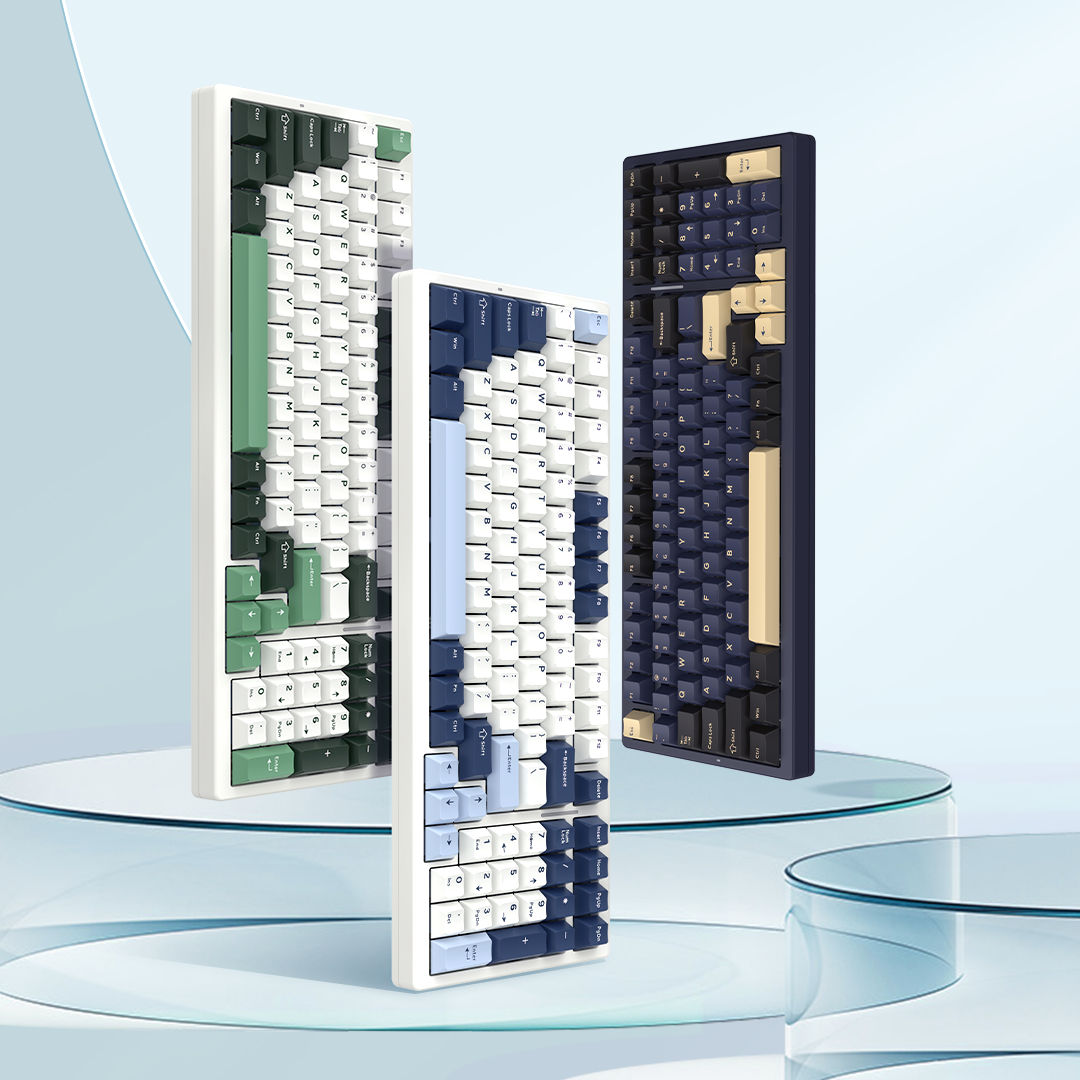

User Manual For VGN N75 V2 Wireless Mechanical Keyboard
Tri-mode version
1.Package List
- VGN N75 V2 Keyboard * 1
- USB-C Data Cable * 1
- VGN Customized Switches * 3
- Electronic Instruction Manual * 1
- 2-in-1 switch and keycap puller * 1
- Warranty certificate* 1
- Dust cover* 1
2. Product Parameters
Connection Mode: USB Wired, 2.4G, Bluetooth
Key Count: 80 (Including knob & hot-swappable Insert key)
Product Dimensions: 323.37 x 140.72 x 45.32 mm
Switch Type: Mechanical Switch
Backlight Type: RGB
Memory Function: Supported
Driver Function: Supported in USB Wired & 2.4G modes
Operating Voltage: DC 5V (Wired); 3.7V (Wireless, Li-ion battery)
Charging Voltage: DC 5V
Charging Current: ≤ 700mA
System Compatibility:
Win7 / Win8 / Win10 / Win11 / MacOS
Sleep Mode:
When connected via 2.4G wireless or Bluetooth, the keyboard will automatically enter sleep mode after 3 minutes of inactivity. Tap any key to wake up the keyboard.
In wired mode, the keyboard does not enter active sleep; it only enters passive sleep with the computer.
PS: If pairing/reconnection via 2.4G or Bluetooth fails within 30 seconds, the keyboard will automatically enter sleep mode.
Low Battery Indicator:
When the battery voltage drops below the threshold of 3.3V (battery level ≤ 20%), the low voltage indicator flashes red slowly until the keyboard enters sleep mode or powers off.
When the voltage drops below 3.1V, the keyboard will power off automatically.
3. Quick Start

System Mode Selection
Please select the corresponding system mode according to your computer OS.
Set the system switch to the Win position for Windows systems, and to the Mac position for Mac systems.
Wired Connection
Open the package, take out the keyboard and data cable.
Insert the USB‑C end of the cable firmly into the USB‑C port on the top of the keyboard, then plug the USB‑A end into your computer’s USB port.
You can now use the basic functions of the keyboard.
To access more customizable settings of this mechanical keyboard, please go to the driver software page.
Keyboard Device Name: VGN N75 V2
Bluetooth Connection
The keyboard can connect to one Bluetooth device at a time and save pairing information.
Bluetooth Device Names:
VGN N75 V2 BT1 / VGN N75 V2 BT2 / VGN N75 V2 BT3
1.Slide the mode switch to the BT position.
2.Press and hold FN+W/E/R for 3 seconds.
The indicator on the W/E/R key will flash white rapidly.
Find VGN N75 V2 BT1 / BT2 / BT3 in your device’s Bluetooth list and select to pair.
Once successfully paired, the W/E/R indicator will return to normal lighting.
2.4G Connection
Remove the receiver from the compartment at the bottom of the keyboard and insert it into a USB port on your computer. Slide the mode switch on the keyboard to the 2.4G position. The keyboard will automatically pair with the receiver, and then it is ready for use.
2.4G Connection Device Name:
VGN N75 V2 2.4G Dongle
Re-pairing Process:
Press and hold FN + Q for 3 seconds. The indicator light under the Q key will flash white rapidly, indicating the keyboard is in 2.4G pairing mode. Re-insert the receiver into a USB port on your computer. Once the connection is successful, the indicator light will automatically return to the normal lighting effect.
Keyboard Shutdown
Slide the mode switch to the middle USB position and disconnect the keyboard cable.
4. Indicator lights and mode descriptions

Indicator Lights
A: Caps key indicator:
distinguishes upper and lower case status of keyboard characters, white light on in upper case, off in lower case.
B: Battery indicator:
Low battery: Left Ctrl flashes red when battery is low.
Charging: Left Ctrl stays red while charging, turns green when fully charged.
C: 2.4G pairing: Q key flashes white rapidly (30 seconds pairing)
2.4G reconnection: Q key flashes white slowly (30 seconds reconnection)
D : Bluetooth pairing:
W key flashes white rapidly (Bluetooth Channel 1) (30 seconds pairing)
E key flashes white rapidly (Bluetooth Channel 2) (30 seconds pairing)
R key flashes white rapidly (Bluetooth Channel 3) (30 seconds pairing)
Bluetooth reconnection:
W key flashes white slowly (Bluetooth Channel 1) (30 seconds reconnection)
E key flashes white slowly (Bluetooth Channel 2) (30 seconds reconnection)
R key flashes white slowly (Bluetooth Channel 3) (30 seconds reconnection)
WIN Key/ALT Key
WIN Key: It cannot be used when the WIN key is locked. In the MAC mode, it functions as the option key.
ALT Key: In the MAC mode, it functions as the Command key.
Windows/MAC Modes

5. FN Combination Key Functions
| FN Combination Key Function Table | |||
| Combination Key | Windows System | Mac System | Description |
| Fn+Esc | Restore Factory Settings | Restore Factory Settings | (Long press for 3 seconds) Restore to factory default state |
| Fn+F1 | Decrease Screen Brightness | F1 Decrease Screen Brightness | |
| Fn+F2 | Increase Screen Brightness | F2 Increase Screen Brightness | |
| Fn+F3 | Task View | F3 Mission Control | |
| Fn+F4 | My Computer | F4 Launchpad | |
| Fn+F5 | Search | F5 Short press for Search, long press for Siri | |
| Fn+F6 | Screenshot | F6 Screenshot | |
| Fn+F7 | Previous Track | F7 Previous Track | |
| Fn+F8 | Play/Pause | F8 Play/Pause | |
| Fn+F9 | Next Track | F9 Next Track | |
| Fn+F10 | Mute | F10 Mute | |
| Fn+F11 | Decrease Volume | F11 Decrease Volume | |
| Fn+F12 | Increase Volume | F12 Increase Volume | |
| Fn+Win | Lock Win | None | Win key stays on in white, with power-off memory |
| Fn+Backspace | Switch Main Backlight Effect | Switch Main Backlight Effect | |
| Fn+Del | Switch Main Backlight Color | Switch Main Backlight Color | |
| Fn+\ | Turn On/Off Backlight | Turn On/Off Backlight | |
| Fn+PgUp | Adjust Light Bar Effect Mode | Adjust Light Bar Effect Mode | |
| Fn+PgDn | Adjust Light Bar Color | Adjust Light Bar Color | |
| Fn+↑ | Increase Main Backlight Brightness | Increase Main Backlight Brightness | 5 levels total, factory default 100% brightness (0-25%-50%-75%-100%); the main backlight flashes rapidly in white when at the limit |
| Fn+↓ | Decrease Main Backlight Brightness | Decrease Main Backlight Brightness | 5 levels total, factory default 100% brightness (0-25%-50%-75%-100%); the main backlight flashes rapidly in white when at the limit |
| Fn+→ | Increase Main Backlight Speed | Increase Main Backlight Speed | 5 levels total; the main backlight flashes rapidly in white when at the limit |
| Fn+← | Decrease Main Backlight Speed | Decrease Main Backlight Speed | 5 levels total; the main backlight flashes rapidly in white when at the limit |
| Fn+P | |||
| Fn+[{ | Scroll | Decrease Screen Brightness | |
| Fn+]} | Pause | Increase Screen Brightness | |
| Fn+L | Ins | Ins | |
| Fn+;: | Home | Home | |
| Fn+'" | End | End | |
| Fn+Enter | Battery Query | Battery Query | Backlight turns off, number keys 1 to 0 light up to show battery percentage. ● >50% battery: number keys light up green ● 50%-30% battery: number keys light up yellow ● 30%-10% battery: number keys light up red |
| Knob | Volume Adjustment | Volume Adjustment | Volume increases clockwise, decreases counterclockwise, and mutes when pressed; the knob is hot-swappable and can be interchanged with the Insert key |
| Fn+Q | 2.4G Mode | 2.4G Mode | Effective when the mode switch is set to 2.4G position |
| Fn+W | Bluetooth Mode 1 | Bluetooth Mode 1 | Effective when the mode switch is set to BT position |
| Fn+E | Bluetooth Mode 2 | Bluetooth Mode 2 | Effective when the mode switch is set to BT position |
| Fn+R | Bluetooth Mode 3 | Bluetooth Mode 3 | Effective when the mode switch is set to BT position |
6. Lighting effect description
| Main Key Area Lighting Effects (Cycle switching starting from the default effect) |
|
| Order | Name |
| 1 | Steady On Mode |
| 2 | Breathing Mode |
| 3 | Dreamy Rainbow |
| 4 | Instant Trigger |
| 5 | Stroll in the Rain |
| 6 | Key Ripple |
| 7 | Starry Twinkle |
| 8 | Endless Flow |
| 9 | Flow with the Tide (Default) |
| 10 | Shadow Follow |
| 11 | Sine Wave |
| 12 | Left-Right Scan |
| 13 | Spinning Windmill |
| 14 | Colorful Waterfall |
| 15 | Blossoming Fortune |
| 16 | Gaming Mode |
| 17 | Off |
| Light Bar Lighting Effects (Cycle switching in order) |
|
| Order | Name |
| 1 | Stream (Default) |
| 2 | Steady On |
| 3 | Breathing |
| 4 | Off |
7. FAQ
Q: Why is my WIN key not working?
A: When the WIN key is locked after pressing FN + WIN, the WIN key cannot be triggered. At this time, the WIN indicator on the keyboard is on. Press FN + WIN again to unlock it.
Q: I want to customize keys, use the macro function, and modify more RGB lighting effects. What should I do?
A: Visit VHUB via vgnlab.com. You can customize keys, edit macros, and modify RGB lighting effects through the driver to experience the full keyboard functions.
Wired version
1.Package List
- VGN N75 V2 Keyboard * 1
- USB-C Data Cable * 1
- VGN Customized Switches * 3
- Electronic Instruction Manual * 1
- 2-in-1 switch and keycap puller * 1
- Warranty certificate* 1
- Dust cover* 1
2. Product Parameters
Connection Mode: USB Wired
Key Count: 80 (Including knob & hot-swappable Insert key)
Product Dimensions: 323.37 x 140.72 x 45.32 mm
Switch Type: Mechanical Switch
Backlight Type: RGB
Memory Function: Supported
Driver Function: Supported in USB Wired
Operating Voltage: DC 5V (Wired)
3. Quick Start

System Mode Selection
Please select the corresponding system mode according to your computer OS.
Set the system switch to the Win position for Windows systems, and to the Mac position for Mac systems.
System Compatibility:
Win7 / Win8 / Win10 / Win11 / MacOS
Wired Connection
Open the package, take out the keyboard and data cable.
Insert the USB‑C end of the cable firmly into the USB‑C port on the top of the keyboard, then plug the USB‑A end into your computer’s USB port.
You can now use the basic functions of the keyboard.
To access more customizable settings of this mechanical keyboard, please go to the driver software page.
Keyboard Device Name: VGN N75 V2
Backlight on/off:
When the backlight switch is set to the on position, the keyboard backlight is on; when the backlight switch is set to the off position, the keyboard backlight is off.

4. Indicator lights

Indicator Lights
A: Caps key indicator:
distinguishes upper and lower case status of keyboard characters, white light on in upper case, off in lower case.
WIN Key/ALT Key
WIN Key: It cannot be used when the WIN key is locked. In the MAC mode, it functions as the option key.
ALT Key: In the MAC mode, it functions as the Command key.
Sleep Mode
Sleep along with the computer
Windows/MAC Modes
5. FN Combination Key Functions
| FN Combination Key Function Table | |||
| Combination Key | Windows System | Mac System | Description |
| Fn+Esc | Restore Factory Settings | Restore Factory Settings | (Long press for 3 seconds) Restore to factory default state |
| Fn+F1 | Decrease Screen Brightness | F1 Decrease Screen Brightness | |
| Fn+F2 | Increase Screen Brightness | F2 Increase Screen Brightness | |
| Fn+F3 | Task View | F3 Mission Control | |
| Fn+F4 | My Computer | F4 Launchpad | |
| Fn+F5 | Search | F5 Short press for Search, long press for Siri | |
| Fn+F6 | Screenshot | F6 Screenshot | |
| Fn+F7 | Previous Track | F7 Previous Track | |
| Fn+F8 | Play/Pause | F8 Play/Pause | |
| Fn+F9 | Next Track | F9 Next Track | |
| Fn+F10 | Mute | F10 Mute | |
| Fn+F11 | Decrease Volume | F11 Decrease Volume | |
| Fn+F12 | Increase Volume | F12 Increase Volume | |
| Fn+Win | Lock Win | None | Win key stays on in white, with power-off memory |
| Fn+Backspace | Switch Main Backlight Effect | Switch Main Backlight Effect | |
| Fn+Del | Switch Main Backlight Color | Switch Main Backlight Color | |
| Fn+PgUp | Adjust Light Bar Effect Mode | Adjust Light Bar Effect Mode | |
| Fn+PgDn | Adjust Light Bar Color | Adjust Light Bar Color | |
| Fn+↑ | Increase Main Backlight Brightness | Increase Main Backlight Brightness | 5 levels total, factory default 100% brightness (0-25%-50%-75%-100%); the main backlight flashes rapidly in white when at the limit |
| Fn+↓ | Decrease Main Backlight Brightness | Decrease Main Backlight Brightness | 5 levels total, factory default 100% brightness (0-25%-50%-75%-100%); the main backlight flashes rapidly in white when at the limit |
| Fn+→ | Increase Main Backlight Speed | Increase Main Backlight Speed | 5 levels total; the main backlight flashes rapidly in white when at the limit |
| Fn+← | Decrease Main Backlight Speed | Decrease Main Backlight Speed | 5 levels total; the main backlight flashes rapidly in white when at the limit |
| Fn+P | |||
| Fn+[{ | Scroll | Decrease Screen Brightness | |
| Fn+]} | Pause | Increase Screen Brightness | |
| Fn+L | Ins | Ins | |
| Fn+;: | Home | Home | |
| Fn+'" | End | End | |
| Knob | Volume Adjustment | Volume Adjustment | Volume increases clockwise, decreases counterclockwise, and mutes when pressed; the knob is hot-swappable and can be interchanged with the Insert key |
6. Lighting effect description
| Main Key Area Lighting Effects (Cycle switching starting from the default effect) |
|
| Order | Name |
| 1 | Steady On Mode |
| 2 | Breathing Mode |
| 3 | Dreamy Rainbow |
| 4 | Instant Trigger |
| 5 | Stroll in the Rain |
| 6 | Key Ripple |
| 7 | Starry Twinkle |
| 8 | Endless Flow |
| 9 | Flow with the Tide (Default) |
| 10 | Shadow Follow |
| 11 | Sine Wave |
| 12 | Left-Right Scan |
| 13 | Spinning Windmill |
| 14 | Colorful Waterfall |
| 15 | Blossoming Fortune |
| 16 | Gaming Mode |
| 17 | Off |
| Light Bar Lighting Effects (Cycle switching in order) |
|
| Order | Name |
| 1 | Stream (Default) |
| 2 | Steady On |
| 3 | Breathing |
| 4 | Off |
7. FAQ
Q: Why is my WIN key not working?
A: When the WIN key is locked after pressing FN + WIN, the WIN key cannot be triggered. At this time, the WIN indicator on the keyboard is on. Press FN + WIN again to unlock it.
Q: I want to customize keys, use the macro function, and modify more RGB lighting effects. What should I do?
A: Visit VHUB via vgnlab.com. You can customize keys, edit macros, and modify RGB lighting effects through the driver to experience the full keyboard functions.