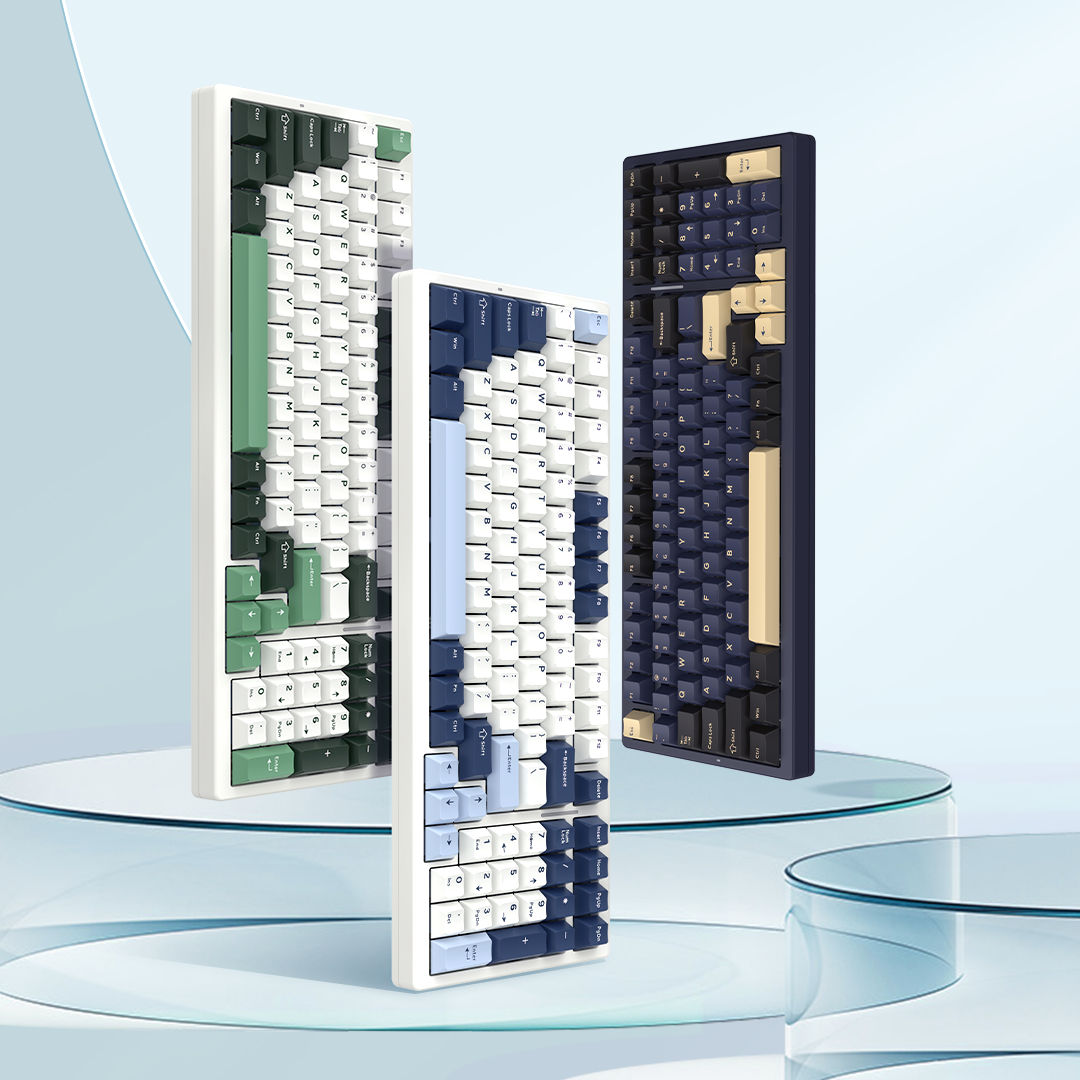

User Manual For VGN VXE75 V2 Keyboard
1. Key Function Explanation

WIN Key
Cannot be used when locked; functions as the Option key in MAC mode.
ALT Key
Functions as the Command key in MAC mode.
Windows/MAC Mode
FN+F1-F12: Toggle the switch to "Win" for Windows mode (F1-F12 act as multimedia keys).
When connected to a Windows system and switched to MAC mode:
Functions of the WIN and ALT keys are swapped.
F1-F12 remain as multimedia keys.
2. FN Combination Keys
Power - on Effect: A white light marquee runs around the keyboard, fading out with a trailing effect. After completion, the backlight restores to the previous mode (default key backlight is a left - right wave).
Three - position Toggle Switch:
Close to USB - C port: 2.4G mode.
Middle position: Wired (USB) mode.
Away from USB - C port: Bluetooth mode.
Two - position system toggle: Close to USB - C for Windows mode; away for MAC mode.
FN Layer Settings: Can be customized via driver software
| FN+ | Combination Key | Windows System | MAC System |
| FN+ | ESC | Reset for 3S | Reset for 3S (OS) |
| FN+ | F1 | This PC | Screen brightness decrease (OS) |
| FN+ | F2 | Home | Screen brightness increase (OS) |
| FN+ | F3 | Calculator | Multitask Controller (OS) |
| FN+ | F4 | Player | Program List (OS) |
| FN+ | F5 | Previous track | None |
| FN+ | F6 | Next track | None |
| FN+ | F7 | Play/Pause | Previous track (OS) |
| FN+ | F8 | Pause | Play/Pause (OS) |
| FN+ | F9 | Mute | Next track (OS) |
| FN+ | F10 | Volume decrease | Mute (OS) |
| FN+ | F11 | Volume increase | Volume decrease (OS) |
| FN+ | F12 | Mailbox | Volume increase (OS) |
Light Switching
| FN+ | Combination Key | Windows System | MAC System | Description |
| FN+ | DEL | ON/OFF Backlight | With memory, does not turn off the light logo | |
| FN+ | ← | Light direction switch | ||
| FN+ | → | Adjust light color | 8 - color + RGB adjustment | |
| FN+ | ↑ | Increase light brightness | CAPS blinks | |
| FN+ | ↓ | Decrease light brightness | CAPS blinks | |
| FN+ | 1! | VGN VXE75 V2 - 1 | Toggle switch (toggle switch to the left) | |
| FN+ | 2@ | VGN VXE75 V2 - 2 | Toggle switch (toggle switch to the left) | |
| FN+ | 3# | VGN VXE75 V2 - 3 | Toggle switch (toggle switch to the left) | |
| FN+ | 4$ | VGN VXE75 V2 2.4G Dongle | Toggle switch to the right | |
| FN+ | =+ | Increase light effect speed | 5 speed levels adjustable, CAPS blinks when adjusted to the extreme level | |
| FN+ | -_ | Decrease light effect speed | 5 speed levels adjustable, CAPS blinks when adjusted to the extreme level | |
| FN+ | \| | Backlight effect switch | ||
| FN+ | INS | Light logo effect switch | Default RGB streamer | |
| FN+ | ENTER | Light logo color switch | 8 - color + RGB | |
| FN+ | PGUP | Light logo speed + | 5 speed levels adjustable, CAPS blinks when adjusted to the extreme level | |
| FN+ | PGDN | Light logo speed - | 5 speed levels adjustable, CAPS blinks when adjusted to the extreme level | |
| FN+ | 【{ | Light logo brightness - | 5 brightness levels adjustable, CAPS blinks when adjusted to the extreme level | |
| FN+ | 】} | Light logo brightness + | 5 brightness levels adjustable, CAPS blinks when adjusted to the extreme level | |
| FN+ | Space | Color switch | Space LED displays colorful light effects, other LEDs display single - color constant on; press the space again, the light selects RGB color display, press other keys, select the corresponding single - color display | |
| FN+ | WIN - L | Lock WIN | Unlock WIN | Key indicator LED lights white |
3. Backlight Effect Description
Power - on: A white light runs around the keyboard with a trailing fade - out effect. After cycling through all keys, it restores to the last saved lighting state before power - off.
Lighting Sequence: Follows the order listed in the table, ending with an "OFF" mode after cycling through all presets.
| Name | Adjustable Content | Description | |||
| Brightness | Speed | Color | Direction | ||
| Constant On | √ | White | The entire keyboard light is always on. | ||
| Flow with the Wave | √ | √ | √ | √ | The light presents a wave state, flowing horizontally from left to right (default). |
| Judgment of Light | √ | √ | The entire keyboard displays a solid color and changes slowly. | ||
| Breathing | √ | √ | √ | The brightness of the entire keyboard changes according to the breathing curve. | |
| Colorful Clouds Flying | √ | √ | √ | √ | The light presents a flowing cloud state, flowing horizontally. |
| Circuitous | √ | √ | √ | √ | The light circles around the center of the keyboard non - stop. |
| Create Ripples | √ | √ | √ | After triggering a key, it spreads and displays from the center around the triggered point. | |
| Tread on Snow Without Trace | √ | √ | √ | When pressing a key, the light remains bright; when released, the light fades out with a tail. | |
| Run Fast | √ | √ | √ | After triggering a key, it spreads to both sides horizontally from the triggered point. | |
| Flowers Competing | √ | √ | √ | RGB: The key lights display multiple colors, and the colorful RGB solid colors present a starlight flashing effect. | |
| Undercurrent Surge | √ | √ | √ | The lights are randomly combined and surge with changes. | |
| Meteor Chasing the Moon | √ | √ | √ | The lights display a colorful gradient row by row, chasing each other. | |
| Roc Spreading Wings | √ | √ | √ | The light simulates a roc waving its wings, fanning up and down. | |
| Flow Continuously | √ | √ | √ | The lights flow from left to right row by row, interspersed and flowing. | |
| Rain Falling | √ | √ | √ | The light simulates rain, with raindrops falling from top right to bottom. | |
| Have Both Sides | √ | √ | The light swings left and right, and the playback speed accelerates with the key - pressing speed. | ||
| United as One | √ | √ | The entire keyboard displays a solid color. When a key is input, the color deepens; when there is no key input, the color restores. | ||
| Speed Passion | √ | √ | The light gathers/spreads from the center of the keyboard, and the playback speed accelerates with the key - pressing speed. | ||
4. Stripe Indicator Effects
| Name | Adjustable Content | Description | ||
| Brightness | Speed | Color | ||
| Flow with the Wave | √ | √ | √ | The light presents a wave state, flowing horizontally from left to right (default). |
| Judgment of Light | √ | The light strip displays a solid color and changes slowly. | ||
| Constant On | √ | √ | The light strip is monochromatic and always on (default red). | |
| Breathing | √ | √ | √ | The light strip breathes in a single color (default red). |
| OFF | ||||
5. Lighting Customization Function
1.Invoke Custom Backlight: Press FN+~ (tilde key) to activate custom backlight (supports one memorized lighting preset).
2.Edit Custom Lighting:Press FN+~ to activate custom backlight, then press again to enter editing mode (CAPS indicator flashes).
Press the key(s) to customize—each press cycles through colors.
Press FN+~ again to save the edited lighting.
6. Mode Settings and Pairing
Three - Mode Toggle Switch:
Slides to select USB (wired), BT (Bluetooth), or 2.4G wireless mode.
Sleep Modes:
First - level sleep: Activates after 3 minutes of inactivity (backlight turns off, Bluetooth/2.4G remains connected; any key press wakes the keyboard with immediate input).
Second - level sleep: Activates after 10 minutes of inactivity (wireless connection disconnects; first key press triggers reconnection, with input enabled after successful reconnection).
Power Consumption:
Operating current: < 320mA.
First - level sleep: < 500μA.
Second - level sleep: < 30μA.
Wireless Mode Operations (Switch/Pair/Code):
Bluetooth 1 (FN+1):
Short press: Switch to Bluetooth 1.
Long press: Enter pairing (LOGO indicator blinks blue rapidly; slow blue blink for reconnection).
Connection: Blue indicator stays on for 2 seconds, then reverts to global backlight; enters sleep if pairing/reconnection fails after 1 minute/20 seconds.
Bluetooth 2 (FN+2):
Short press: Switch to Bluetooth 2 (purple indicator).
Long press: Pairing (purple rapid blink; slow purple blink for reconnection).
Connection: Purple indicator stays on for 2 seconds, then reverts to global backlight; sleep after 1 minute/20 seconds of failure.
Bluetooth 3 (FN+3):
Short press: Switch to Bluetooth 3 (cyan indicator).
Long press: Pairing (cyan rapid blink; slow cyan blink for reconnection).
Connection: Cyan indicator stays on for 2 seconds, then reverts to global backlight; sleep after 1 minute/20 seconds of failure.
2.4G (FN+4):
Short press: Switch to 2.4G (green indicator).
Long press: Pairing (green rapid blink; slow green blink for reconnection).
Connection: Green indicator stays on for 2 seconds, then reverts to global backlight; sleep after 1 minute/20 seconds of failure.
7. Battery Indicator (3.7V Lithium Battery)
Charging Mode (FN+Right Alt):
Flowing green light on the stripe indicator: Charging in progress.
Steady green light: Fully charged.
Specs: 5V — 200mA (rated).
Battery Check (FN+Right Alt):
Hold to display battery level (reverts to saved lighting effect when released):
100%–70%: All LOGO LEDs lit green.
70%–60%: 5 LOGO LEDs lit green.
60%–50%: 4 LOGO LEDs lit green.
50%–40%: 3 LOGO LEDs lit green.
40%–30%: 2 LOGO LEDs lit yellow.
Below 30%: 1 LOGO LED lit red.
Low Battery Alert:
Entire LOGO indicator flashes red at 1Hz, prompting charging.