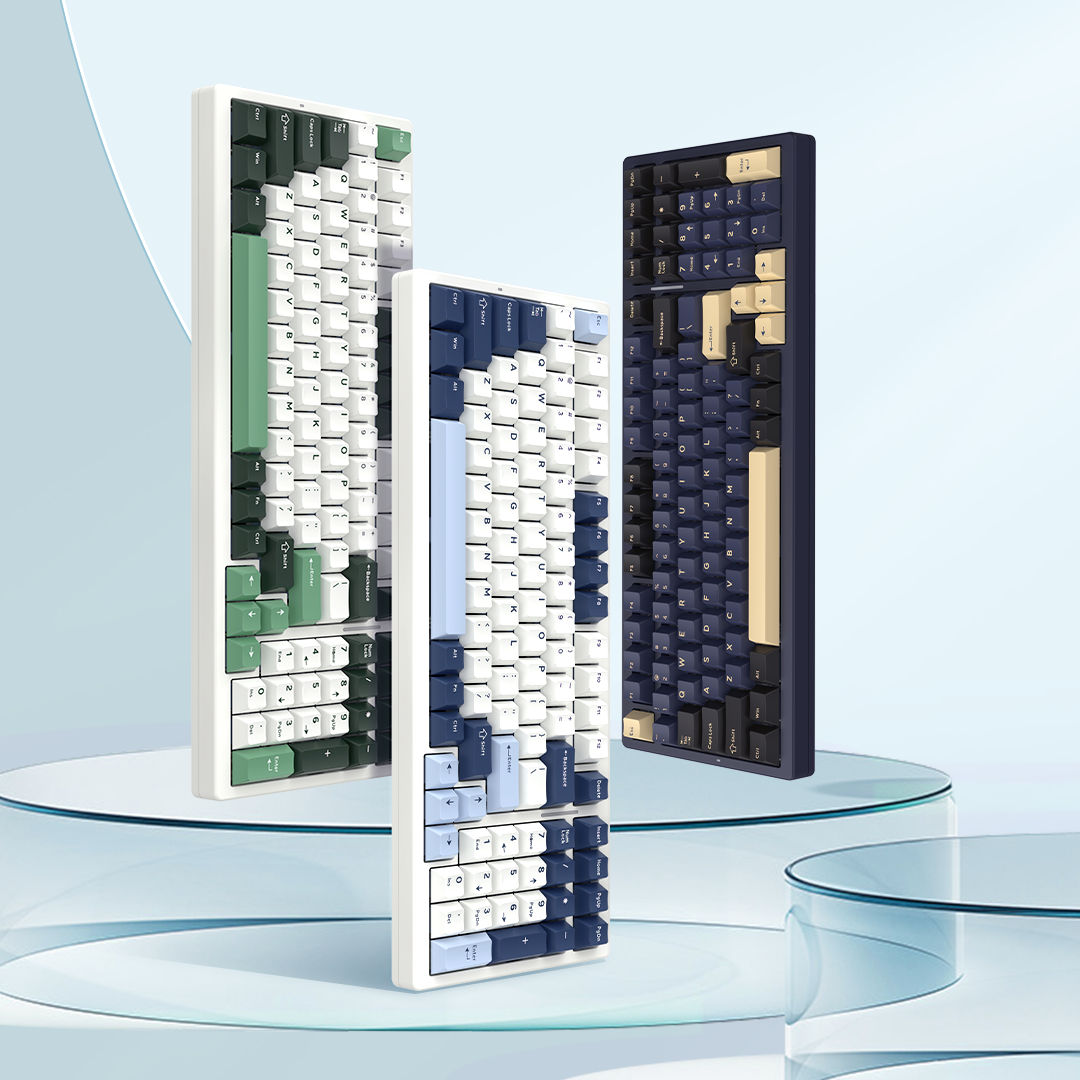

User Manual For VGN FLASH 68HE Aluminum Magnetic Switch Keyboard
1.Package List
- FLASH 68 Magnetic Keyboard ×1
- USB-C to USB-A Data Cable ×1
- 2-in-1 Switch & Keycap Puller ×1
- VGN Custom Switches ×3
- VGN Brand Sticker ×1
- Digital Manual Card ×1
- Warranty Certificate ×1
2. Quick Start

Wired Connection
Open the package, take out the keyboard and data cable. Connect the USB-C end to the USB-C port on the top of the keyboard, then plug the USB-A end into your computer. The basic functions are now ready to use.
To access more customizable settings for this magnetic switch keyboard, please install the driver software.
Device Name: VGN Flash68
Supported Systems: Win7/Win8/Win10/Win11
3. Indicator & Mode Instructions

Indicator Lights
A: Caps Lock Indicator
Shows uppercase/lowercase status. White light on = uppercase; off = lowercase.
B: Win Lock Indicator
Shows Win key lock status. White light on = Win key disabled; off = unlocked.
C: RT Function Indicator
Lights up for 3 seconds when RT is activated, then turns off:
1.Red: Normal Mode
2.Yellow: Office Mode
3.Blue: FPS Esports Mode
4.Green: MOBA Esports Mode
Factory default: Preset 1 (red light stays on)
Sleep mode
The keyboard sleeps along with the computer system, and the backlight turns off during sleep. Pressing any key wakes the keyboard back to its pre-sleep state.
(If the USB port remains powered when the computer is set to sleep, the keyboard will not sleep; otherwise, it will sleep.)
4. FN Combination Key Functions
| FN Key Combination Functions | ||
| Combination Key | Function | Description |
| Fn+Tab | Restore Default Settings | Long press for 3 seconds: all lights flash white 3 times and reset. All lighting effects and function settings are restored to default (including side lights). |
| Fn+; : | Light Color Forward | Switch colors under adjustable backlight effects. |
| Fn+' " | Light Color Backward | Switch colors under adjustable backlight effects. |
| Fn+[ { | Effect Mode Forward | Switch backlight effect modes. |
| Fn+] } | Effect Mode Backward | Switch backlight effect modes. |
| Fn+T | Previous Track | - |
| Fn+Y | Play/Pause | - |
| Fn+U | Stop | - |
| Fn+I | Mute | - |
| Fn+O | Volume Down | - |
| Fn+P | Volume Up | - |
| Fn+|\ | Lights On/Off | Keyboard backlight on/off toggle. |
| Fn+Win_L | Win Key Lock | Win key locked with white light on; power-off memory function. |
| Fn+N | Ambient Light Brightness + | 5 levels total; factory default: 100%. |
| Fn+M | Ambient Light Brightness - | 5 levels total; factory default: 100%. |
| Fn+1 | F1 | - |
| Fn+2 | F2 | - |
| Fn+3 | F3 | - |
| Fn+4 | F4 | - |
| Fn+5 | F5 | - |
| Fn+6 | F6 | - |
| Fn+7 | F7 | - |
| Fn+8 | F8 | - |
| Fn+9 | F9 | - |
| Fn+0 | F10 | - |
| Fn+/ ? | Side Light | Cycle through side light speed settings. |
| Fn+, < | Switch Side Ambient Light Mode | Switch side ambient light effects: Flow, Up-Down Symmetric Flow, Neon, Solid Color On, Solid Color Breathing, Off. Default: Flow on power-on; power-off memory function. |
| Fn+. > | Cycle Main Backlight Color | 5 levels total; factory default: 75% (0-25%-50%-75%-100%). Backlight flashes white 3 times at extreme limit. |
| Fn+ ↑ | Main Area Brightness + | Works in all modes (5 levels, default max brightness). When at max brightness, the up arrow key's light flashes white twice for prompt. |
| Fn+ ↓ | Main Area Brightness - | Works in all modes (5 levels, default max brightness). When at max brightness, the up arrow key's light flashes white twice for prompt. |
| Fn+ → | Main Area Light Speed + | Works in all dynamic modes (5 levels, default fastest). |
| Fn+ ← | Main Area Light Speed - | Works in all dynamic modes (5 levels, default fastest). |
5. FAQ
Q: Why is my WIN key not working?
A: When the WIN key is locked after pressing FN + WIN, the WIN key cannot be triggered. At this time, the WIN indicator on the keyboard is on. Press FN + WIN again to unlock it.
Q: I want to customize keys, use the macro function, and modify more RGB lighting effects. What should I do?
A: Visit VHUB via vgnlab.com. You can customize keys, edit macros, and modify RGB lighting effects through the driver to experience the full keyboard functions.