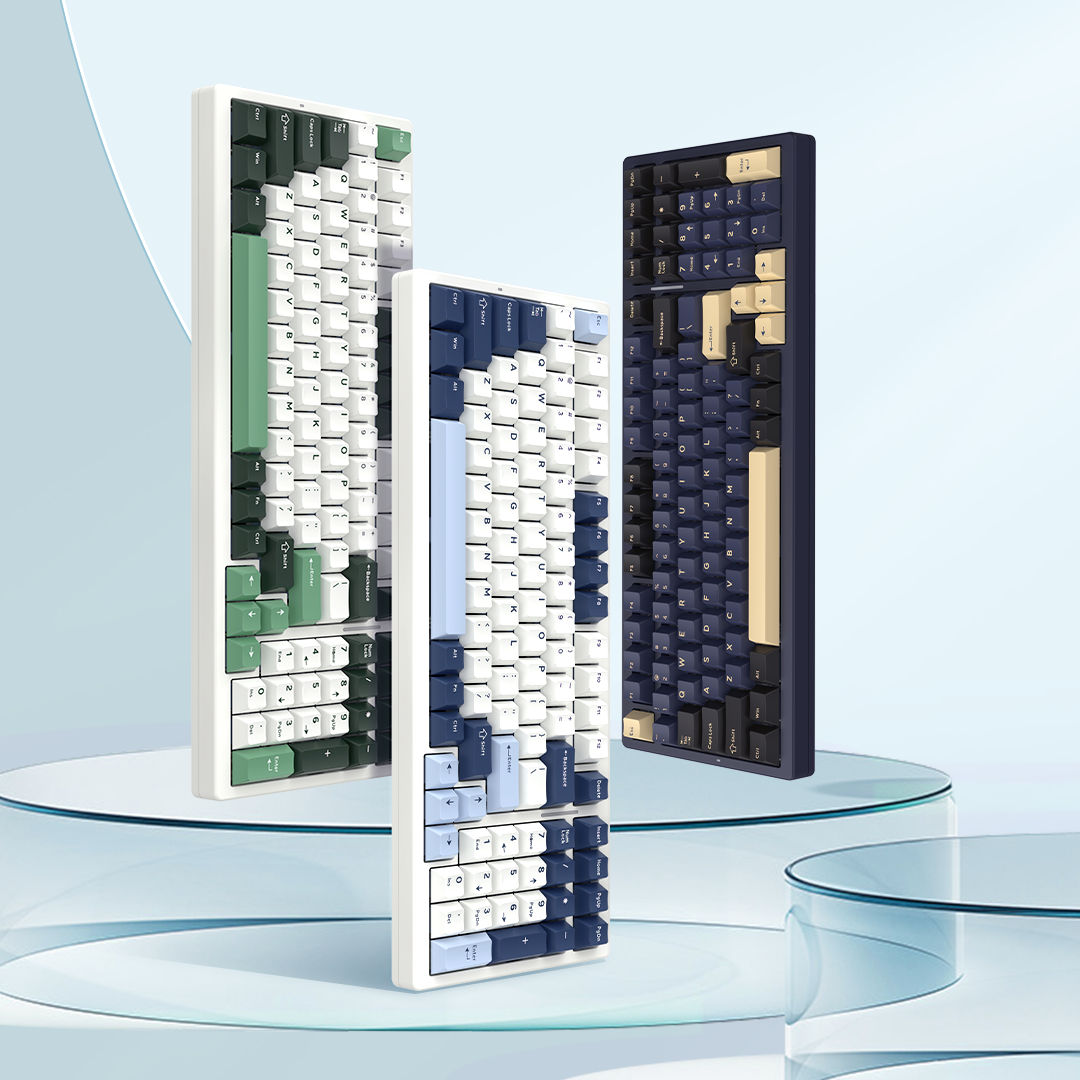

User Manual For VGN Neon75HE Air Wireless Magnetic Switch Keyboard
Neon75HE Air - Wired Version
01 Package Contents
- 1 × Neon75 Air Magnetic Switch Keyboard
- 1 × USB-C to USB-A Data Cable
- 1 × 2-in-1 Switch & Keycap Puller
- 4 × VGN Custom Switches
- 1 × Digital Manual Card
- 1 × Warranty Card
02 Quick Start

Wired Connection
Unpack the keyboard and data cable. Plug the USB-C end into the top USB-C port of the keyboard and the USB-A end into a computer USB port to access basic keyboard functions. Install the driver software for advanced custom settings of this magnetic switch keyboard.
Device Name: VGN Neon75 Air Wired Keyboard
Sleep Mode
The keyboard enters sleep synchronously with the connected computer system, with backlight turned off. Tap any key to wake the keyboard to its pre-sleep state.
03 Indicator Lights & Mode Description

Indicator Lights
A: Caps Lock Indicator: Indicates letter case; steady white for uppercase, off for lowercase.
B: Win Key Indicator: Shows Win lock status; steady white when Win key is locked and disabled, off after unlocking.
C: RT Function Indicator: Steady red when RT is enabled, off when disabled.
Win Key / Alt Key
Win Key: Disabled under lock; acts as Option key in Mac mode.
Alt Key: Acts as Command key in Mac mode.
Windows / Mac Mode
FN+A switches to Windows mode
F1-F12: Standard function input
FN+F1-F12: Multimedia shortcuts
FN+S switches to Mac mode
F1-F12: Multimedia shortcuts
FN+F1-F12: Standard function input
04 FN Combination Key Functions
| FN Combination Key Functions | |||
| Combination Key | Windows System | Mac System | Description |
| Fn+Alt_R+Esc | Restore Factory Settings | Restore Factory Settings | (Press and hold for 3 seconds) Restores to factory default state |
| Fn+Shift_R | RT On/Off | RT On/Off | Red indicator light turns on when RT is enabled, turns off when disabled |
| Fn+A | Switch to Windows System | / | Full backlight flashes white |
| Fn+S | / | Switch to Mac System | Full backlight flashes white |
| Fn+F1 | This PC | Decrease Screen Brightness | |
| Fn+F2 | Home | Increase Screen Brightness | |
| Fn+F3 | Mission Control | ||
| Fn+F4 | Calculator | Launchpad | |
| Fn+F5 | Multimedia | None | |
| Fn+F6 | Stop | None | |
| Fn+F7 | Previous Track | Previous Track | |
| Fn+F8 | Pause/Play | Pause/Play | |
| Fn+F9 | Next Track | Next Track | |
| Fn+F10 | Mute | Mute | |
| Fn+F11 | Volume Down | Volume Down | |
| Fn+F12 | Volume Up | Volume Up | |
| Fn+Win | Lock Win Key | None | Win key white light stays on |
| Fn+- | Main Backlight Effect Switch | Main Backlight Effect Switch | Cycle through 20 sets of main backlight effects |
| Fn+=+ | Main Backlight Color Switch | Main Backlight Color Switch | Cycle through main backlight colors |
| Fn+↑ | Increase Main Backlight Brightness | Increase Main Backlight Brightness | 5 levels total, factory default 75% brightness (0-25%-50%-75%-100%); backlight flashes white when adjusted to the limit |
| Fn+↓ | Decrease Main Backlight Brightness | Decrease Main Backlight Brightness | |
| Fn+→ | Increase Main Backlight Speed | Increase Main Backlight Speed | |
| Fn+← | Decrease Main Backlight Speed | Decrease Main Backlight Speed | |
| Fn+]} | Side Light Effect Switch | Side Light Effect Switch | Side light effect cycle switch: Streamer (default, neon) |
| Fn+Alt_R+↑ | Increase Side Light Brightness | Increase Side Light Brightness | 5 levels total, factory default 75% brightness (0-25%-50%-75%-100%); backlight flashes white when adjusted to the limit |
| Fn+Alt_R+↓ | Decrease Side Light Brightness | Decrease Side Light Brightness | |
| Fn+Alt_R+→ | Increase Side Light Speed | Increase Side Light Speed | |
| Fn+Alt_R+← | Decrease Side Light Speed | Decrease Side Light Speed | |
| Fn+X | Backlight On/Off | Backlight On/Off | Turn main backlight and side light on or off |
| Fn Single Press | All keys with combination key functions light up bright white | On Mac system, Win key does not light up when Win lock is disabled; other combination key lights up bright white | |
05 Troubleshooting
Q: Why is my Win key unavailable?
A: The Win key gets locked after pressing FN+Win with its indicator lit. Press FN+Win again to unlock.
Q: Why are Win and Alt swapped, or F1-F12 malfunction as media keys?
A: FN+S activates Mac mode, causing swapped Win/Alt and media-only F1-F12 on Windows OS. Press FN+A to revert to Windows mode.
Q: How to remap keys, set macros and customize RGB lighting?
A: Download VHUB driver via download.vgnlab.com.cn for key remapping, macro editing and full RGB customization.
VGN Neon75HE Air Tri‑mode
01 Package Contents
- 1 × Neon75 Air Magnetic Switch Keyboard
- 1 × USB-C to USB-A Data Cable
- 1 × 2-in-1 Switch & Keycap Puller
- 4 × VGN Custom Switches
- 1 × Digital Manual Card
- 1 × Warranty Card
02 Quick Start

Wired Connection
Unpack the keyboard and data cable. Plug the USB-C end into the top USB-C port of the keyboard and the USB-A end into a computer USB port to access basic keyboard functions. Install the driver software for advanced custom settings of this magnetic switch keyboard.
Device Name: VGN Neon75 Air Tri-mode Keyboard
Bluetooth Connection
1. Slide the mode switch left to BT position.
2. Press and hold FN+1!/2@/3# for 3 seconds to enter pairing mode. Device names are Neon75 Air BT1/BT2/BT3. Corresponding key’s blue indicator flashes rapidly and stays solid for 3 seconds upon successful connection. If no connection is made within 60 seconds, the indicator turns off and the keyboard goes into sleep.
2.4G Connection
1. Slide the mode switch right to WIFI position.
2. Press and hold FN+4$ for over 3 seconds to enter pairing mode with green indicator flashing rapidly, then plug in the receiver. The indicator stays lit for 3 seconds and returns to normal lighting after successful pairing. Pairing terminates after 60 seconds with indicator off and keyboard entering sleep if no device is found.
Power Off the Keyboard
Slide the mode switch to wired position and unplug the keyboard cable.
03 Indicator Lights & Mode Description
Indicator Lights
A: Caps Lock Indicator: Indicates letter case; steady white for uppercase, off for lowercase.
B: Win Key Indicator: Shows Win lock status; steady white when Win key is locked and disabled, off after unlocking.
C: Status Indicator:
Low battery (remaining power below 30%): Red light flashes slowly.
Charging: Red light stays solid; red light turns off and switches to mode indicator once battery level exceeds 90%.
BT Mode: Blue light flashes fast during pairing, blue light flashes slowly during reconnection, steady blue light after successful connection.
2.4G Mode: Green light flashes fast during pairing, green light flashes slowly during reconnection, steady green light after successful connection.
Wired Mode: Steady white light.
RT Indicator: Purple light stays solid when RT function is enabled; reverts to other indicator status after RT is disabled.
Indicator Priority: Level 1 for charging status, Level 2 for RT toggle status, Level 3 for working mode status.
Win Key / Alt Key
Win Key: Disabled under lock; acts as Option key in Mac mode.
Alt Key: Acts as Command key in Mac mode.
Windows / Mac Mode
FN+A switches to Windows mode
F1-F12: Standard function input
FN+F1-F12: Multimedia shortcuts
FN+S switches to Mac mode
F1-F12: Multimedia shortcuts
FN+F1-F12: Standard function input
04 FN Combination Key Functions
| FN Combination Key Functions | |||
| Combination Key | Windows System | Mac System | Description |
| Fn+Alt_R+Esc | Restore Factory Settings | Restore Factory Settings | (Press and hold for 3 seconds) Restores to factory default state |
| Fn+Shift_R | RT On/Off | RT On/Off | Red indicator light turns on when RT is enabled, turns off when disabled |
| Fn+A | Switch to Windows System | / | Full backlight flashes white |
| Fn+S | / | Switch to Mac System | Full backlight flashes white |
| Fn+F1 | This PC | Decrease Screen Brightness | |
| Fn+F2 | Home | Increase Screen Brightness | |
| Fn+F3 | Mission Control | ||
| Fn+F4 | Calculator | Launchpad | |
| Fn+F5 | Multimedia | None | |
| Fn+F6 | Stop | None | |
| Fn+F7 | Previous Track | Previous Track | |
| Fn+F8 | Pause/Play | Pause/Play | |
| Fn+F9 | Next Track | Next Track | |
| Fn+F10 | Mute | Mute | |
| Fn+F11 | Volume Down | Volume Down | |
| Fn+F12 | Volume Up | Volume Up | |
| Fn+Win | Lock Win Key | None | Win key white light stays on |
| Fn+- | Main Backlight Effect Switch | Main Backlight Effect Switch | Cycle through 20 sets of main backlight effects |
| Fn+=+ | Main Backlight Color Switch | Main Backlight Color Switch | Cycle through main backlight colors |
| Fn+↑ | Increase Main Backlight Brightness | Increase Main Backlight Brightness | 5 levels total, factory default 75% brightness (0-25%-50%-75%-100%); backlight flashes white when adjusted to the limit |
| Fn+↓ | Decrease Main Backlight Brightness | Decrease Main Backlight Brightness | |
| Fn+→ | Increase Main Backlight Speed | Increase Main Backlight Speed | |
| Fn+← | Decrease Main Backlight Speed | Decrease Main Backlight Speed | |
| Fn+]} | Side Light Effect Switch | Side Light Effect Switch | Side light effect cycle switch: Streamer (default, Neon, Solid Color Switch, Off) |
| Fn+Alt_R+↑ | Increase Side Light Brightness | Increase Side Light Brightness | 5 levels total, factory default 75% brightness (0-25%-50%-75%-100%); backlight flashes white when adjusted to the limit |
| Fn+Alt_R+↓ | Decrease Side Light Brightness | Decrease Side Light Brightness | |
| Fn+Alt_R+→ | Increase Side Light Speed | Increase Side Light Speed | |
| Fn+Alt_R+← | Decrease Side Light Speed | Decrease Side Light Speed | |
| Fn+X | Keyboard Light On/Off / Power Saving Mode Switch | Keyboard Light On/Off / Power Saving Mode Switch | Retains Caps indicator light and Win lock function |
| Fn Single Press | All keys with combination key functions light up bright white | On Mac system, Win key does not light up when Win lock is disabled; other combination key lights up bright white | |
| Fn+1! | Bluetooth 1 Pairing | Bluetooth 1 Pairing | Switch mode to Bluetooth: short press to switch to Bluetooth 1, long press to enter Bluetooth 1 pairing |
| Fn+2@ | Bluetooth 2 Pairing | Bluetooth 2 Pairing | Switch mode to Bluetooth: short press to switch to Bluetooth 2, long press to enter Bluetooth 2 pairing |
| Fn+3# | Bluetooth 3 Pairing | Bluetooth 3 Pairing | Switch mode to Bluetooth: short press to switch to Bluetooth 3, long press to enter Bluetooth 3 pairing |
| Fn+4$ | 2.4G Pairing | 2.4G Pairing | Switch mode to 2.4G: long press to enter 2.4G pairing |
| Fn+Space | Check Battery Level Battery power is valid in wireless mode |
Check Battery Level Battery power is valid in wireless mode |
Battery level check in BT/2.4G mode: When pressing Fn+Space, the main backlight turns off, and keys 1! to 0) light up to display the battery percentage. For example: 1! on = 10% battery, 1! and 2@ on = 20% battery, and so on. (Light color: red for below 30%, yellow for 30%-50%, green for above 50%) |
05 Troubleshooting
Q: Why is my Win key unavailable?
A: The Win key gets locked after pressing FN+Win with its indicator lit. Press FN+Win again to unlock.
Q: Why are Win and Alt swapped, or F1-F12 malfunction as media keys?
A: FN+S activates Mac mode, causing swapped Win/Alt and media-only F1-F12 on Windows OS. Press FN+A to revert to Windows mode.
Q: How to remap keys, set macros and customize RGB lighting?
A: Download VHUB driver via download.vgnlab.com.cn for key remapping, macro editing and full RGB customization.