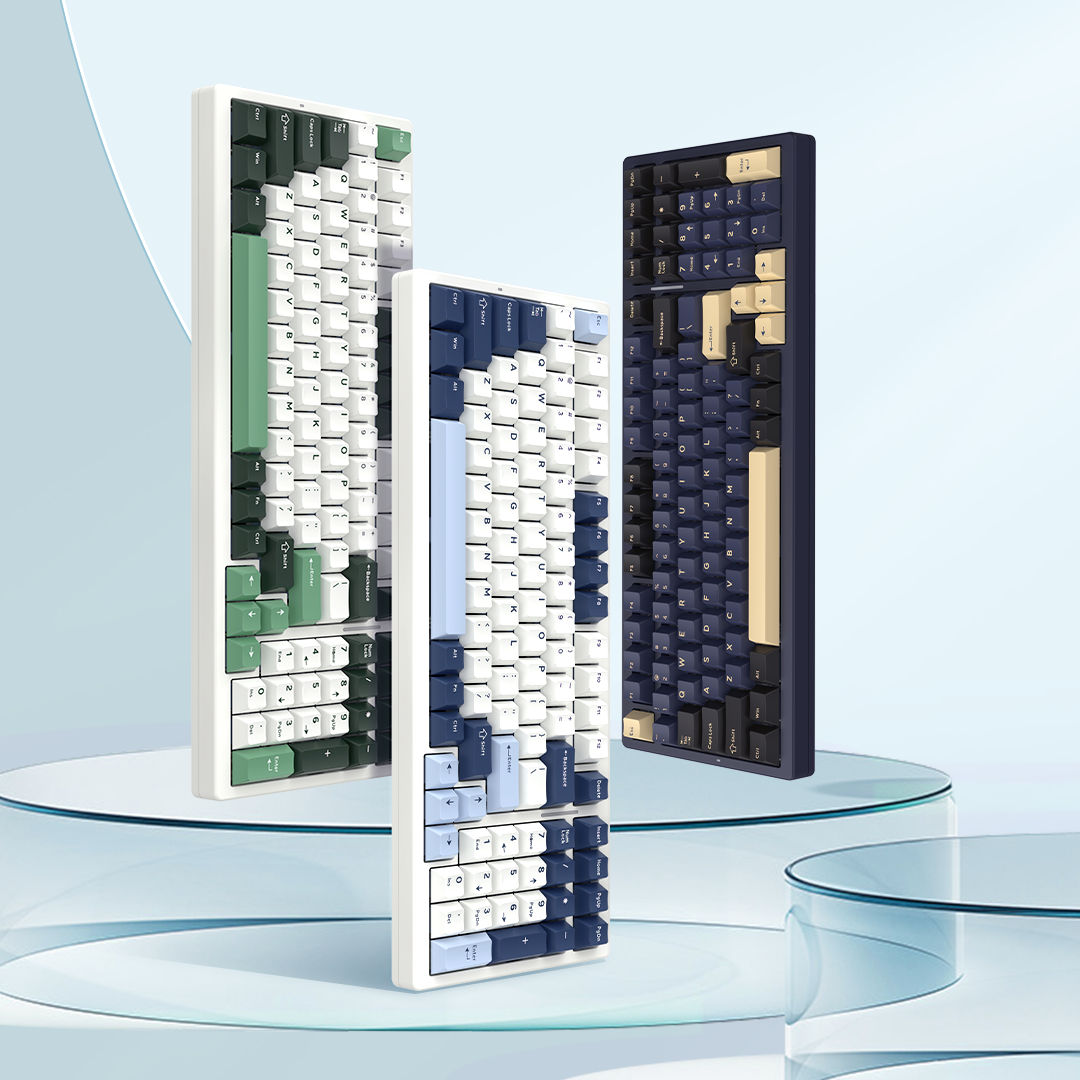

User Manual For VGN Neon 68HE Super Competitive Edition
Super Competitive Plus
1.Package List
- Keyboard * 1
- USB-C Data Cable * 1
- VGN Customized Switches * 3
- Electronic Instruction Manual * 1
- 2-in-1 switch and keycap puller * 1
- Warranty certificate* 1
2. Quick Start

Wired Connection
Insert the USB-C data cable into the USB port of the keyboard, and connect the other end of the USB-C data cable to the computer.
Supported Systems: Win7/Win8/Win10/Win11/MacOS
Sleep mode
The keyboard goes into sleep mode along with the computer system. The backlight is off during sleep mode. At this time, pressing any key on the keyboard will wake the keyboard up to its pre-sleep state.
3. Key Descriptions

Indicator Lights
A: CAPS Indicator: Distinguishes the case state. It stays on in the uppercase state.
B: WIN Indicator: Distinguishes the lock state of the WIN key. It stays on when the WIN key is locked, and the WIN key cannot be used at this time.
C: RT mode: When the RT function is turned on, the Purple light is always on, and it goes off when the RT function is turned off.
WIN Key/ALT Key
WIN Key: It cannot be used when the WIN key is locked. In the MAC mode, it functions as the option key.
ALT Key: In the MAC mode, it functions as the Command key.
Windows/MAC Modes
Press FN + A to switch to Windows mode.
Press FN + S to switch to MAC mode.
4. FN Combination Key Functions
| Combination Key | Windows System | Mac System | Description |
| Fn+A | Windows Mode | / | The A key flashes rapidly in white |
| Fn+S | / | Mac Mode | The S key flashes rapidly in white |
| Fn+Alt_R+Esc | Restore Factory Settings | Restore Factory Settings | Long press for 3 seconds to restore to factory default; the entire backlight flashes rapidly in white |
| Fn+Alt+1 | My Computer | Decrease Screen Brightness | |
| Fn+Alt+2 | Home Page | Increase Screen Brightness | |
| Fn+Alt+3 | Mission Control | ||
| Fn+Alt+4 | Calculator | Console | |
| Fn+Alt+5 | Play Music | None | |
| Fn+Alt+6 | Stop | None | |
| Fn+Alt+7 | Previous Track | Previous Track | |
| Fn+Alt+8 | Play/Pause | Play/Pause | |
| Fn+Alt+9 | Next Track | Next Track | |
| Fn+Alt+0 | Mute | Mute | |
| Fn+Alt+- | Decrease Volume | Decrease Volume | |
| Fn+Alt+= | Increase Volume | Increase Volume | |
| Fn+Esc | ~ | ~ | |
| Fn+Win | Lock Win Key | None | The Win key stays on in white, with power-off memory |
| Combination Key | Windows System | Mac System | Description |
| Fn+1 | F1 | F1 | |
| Fn+2 | F2 | F2 | |
| Fn+3 | F3 | F3 | |
| Fn+4 | F4 | F4 | |
| Fn+5 | F5 | F5 | |
| Fn+6 | F6 | F6 | |
| Fn+7 | F7 | F7 | |
| Fn+8 | F8 | F8 | |
| Fn+9 | F9 | F9 | |
| Fn+0 | F10 | F10 | |
| Fn+- | F11 | F11 | |
| Fn+= | F12 | F12 | |
| Fn+PgUp | Switch Main Backlight Effect | Switch Main Backlight Effect | |
| Fn+PgDn | Switch Main Backlight Color | Switch Main Backlight Color | |
| Fn+Del | Switch Side Light Effect | Switch Side Light Effect | |
| Fn+Alt_R+Del | Turn On/Off Backlight | Turn On/Off Backlight | Turn on/off main backlight and side lights |
| Fn+Shift_R | Turn On/Off RT | Turn On/Off RT | The right indicator light is purple when enabled, and turns off when disabled |
| Combination Key | Windows System | Mac System | Description |
| Fn+↑ | Increase Main Backlight Brightness | Increase Main Backlight Brightness | 5 levels total, factory default 75% brightness (0-25%-50%-75%-100%); the backlight flashes rapidly in white when at the limit |
| Fn+↓ | Decrease Main Backlight Brightness | Decrease Main Backlight Brightness | 5 levels total, factory default 75% brightness (0-25%-50%-75%-100%); the backlight flashes rapidly in white when at the limit |
| Fn+→ | Increase Main Backlight Speed | Increase Main Backlight Speed | 5 levels total, factory default 75% (0-25%-50%-75%-100%); the backlight flashes rapidly in white when at the limit |
| Fn+← | Decrease Main Backlight Speed | Decrease Main Backlight Speed | 5 levels total, factory default 75% (0-25%-50%-75%-100%); the backlight flashes rapidly in white when at the limit |
| Fn+Alt_R+↑ | Increase Side Light Brightness | Increase Side Light Brightness | 5 levels total, factory default 100% brightness (0-25%-50%-75%-100%); the backlight flashes rapidly in white when at the limit |
| Fn+Alt_R+↓ | Decrease Side Light Brightness | Decrease Side Light Brightness | 5 levels total, factory default 100% brightness (0-25%-50%-75%-100%); the backlight flashes rapidly in white when at the limit |
| Fn+Alt_R+→ | Increase Side Light Speed | Increase Side Light Speed | 5 levels total, factory default 75% (0-25%-50%-75%-100%); the backlight flashes rapidly in white when at the limit |
| Fn+Alt_R+← | Decrease Side Light Speed | Decrease Side Light Speed | 5 levels total, factory default 75% (0-25%-50%-75%-100%); the backlight flashes rapidly in white when at the limit |
| Fn (Single Press) | Combination Key Hint | Combination Key Hint | Pressing Fn alone will light up keys with combination functions in white for hinting. Note: In wired mode: Right Alt, Esc, Left Win, 1!, 2@, 3#, 4$, 5%, 6^, 7&, 8*, 9(, 0), -=+, Del, PU, PD, Shift_R, ↑, ↓, ←, → [In Windows Mode: S and Win keys light up; in Mac Mode: A key lights up, Win key does not light up] — all light up in white |
5. FAQ
Q: Why is my WIN key not working?
A: When the WIN key is locked after pressing FN + WIN, the WIN key cannot be triggered. At this time, the WIN indicator on the keyboard is on. Press FN + WIN again to unlock it.
Q: I want to customize keys, use the macro function, and modify more RGB lighting effects. What should I do?
A: Visit VHUB via vgnlab.com. You can customize keys, edit macros, and modify RGB lighting effects through the driver to experience the full keyboard functions.
Super Competitive
1.Package List
- Keyboard * 1
- USB-C Data Cable * 1
- VGN Customized Switches * 3
- Electronic Instruction Manual * 1
- 2-in-1 switch and keycap puller * 1
- Warranty certificate* 1
2. Quick Start
Wired Connection
Insert the USB-C data cable into the USB port of the keyboard, and connect the other end of the USB-C data cable to the computer.
Supported Systems: Win7/Win8/Win10/Win11/MacOS
Sleep mode
The keyboard goes into sleep mode along with the computer system. The backlight is off during sleep mode. At this time, pressing any key on the keyboard will wake the keyboard up to its pre-sleep state.
3. Key Descriptions
Indicator Lights
A: CAPS Indicator: Distinguishes the case state. It stays on in the uppercase state.
B: WIN Indicator: Distinguishes the lock state of the WIN key. It stays on when the WIN key is locked, and the WIN key cannot be used at this time.
C: RT mode: When the RT function is turned on, the Purple light is always on, and it goes off when the RT function is turned off.
WIN Key/ALT Key
WIN Key: It cannot be used when the WIN key is locked. In the MAC mode, it functions as the option key.
ALT Key: In the MAC mode, it functions as the Command key.
Windows/MAC Modes
Press FN + A to switch to Windows mode.
Press FN + S to switch to MAC mode.
4. FN Combination Key Functions
| Combination Key | Windows System | Mac System | Description |
| Fn+A | Windows Mode | / | The A key flashes rapidly in white |
| Fn+S | / | Mac Mode | The S key flashes rapidly in white |
| Fn+Alt_R+Esc | Restore Factory Settings | Restore Factory Settings | Long press for 3 seconds to restore to factory default; the entire backlight flashes rapidly in white |
| Fn+Alt+1 | My Computer | Decrease Screen Brightness | |
| Fn+Alt+2 | Home Page | Increase Screen Brightness | |
| Fn+Alt+3 | Mission Control | ||
| Fn+Alt+4 | Calculator | Console | |
| Fn+Alt+5 | Play Music | None | |
| Fn+Alt+6 | Stop | None | |
| Fn+Alt+7 | Previous Track | Previous Track | |
| Fn+Alt+8 | Play/Pause | Play/Pause | |
| Fn+Alt+9 | Next Track | Next Track | |
| Fn+Alt+0 | Mute | Mute | |
| Fn+Alt+- | Decrease Volume | Decrease Volume | |
| Fn+Alt+= | Increase Volume | Increase Volume | |
| Fn+Esc | ~ | ~ | |
| Fn+Win | Lock Win Key | None | The Win key stays on in white, with power-off memory |
| Combination Key | Windows System | Mac System | Description |
| Fn+1 | F1 | F1 | |
| Fn+2 | F2 | F2 | |
| Fn+3 | F3 | F3 | |
| Fn+4 | F4 | F4 | |
| Fn+5 | F5 | F5 | |
| Fn+6 | F6 | F6 | |
| Fn+7 | F7 | F7 | |
| Fn+8 | F8 | F8 | |
| Fn+9 | F9 | F9 | |
| Fn+0 | F10 | F10 | |
| Fn+- | F11 | F11 | |
| Fn+= | F12 | F12 | |
| Fn+PgUp | Switch Main Backlight Effect | Switch Main Backlight Effect | |
| Fn+PgDn | Switch Main Backlight Color | Switch Main Backlight Color | |
| Fn+Del | Switch Side Light Effect | Switch Side Light Effect | |
| Fn+Alt_R+Del | Turn On/Off Backlight | Turn On/Off Backlight | Turn on/off main backlight and side lights |
| Fn+Shift_R | Turn On/Off RT | Turn On/Off RT | The right indicator light is purple when enabled, and turns off when disabled |
| Combination Key | Windows System | Mac System | Description |
| Fn+↑ | Increase Main Backlight Brightness | Increase Main Backlight Brightness | 5 levels total, factory default 75% brightness (0-25%-50%-75%-100%); the backlight flashes rapidly in white when at the limit |
| Fn+↓ | Decrease Main Backlight Brightness | Decrease Main Backlight Brightness | 5 levels total, factory default 75% brightness (0-25%-50%-75%-100%); the backlight flashes rapidly in white when at the limit |
| Fn+→ | Increase Main Backlight Speed | Increase Main Backlight Speed | 5 levels total, factory default 75% (0-25%-50%-75%-100%); the backlight flashes rapidly in white when at the limit |
| Fn+← | Decrease Main Backlight Speed | Decrease Main Backlight Speed | 5 levels total, factory default 75% (0-25%-50%-75%-100%); the backlight flashes rapidly in white when at the limit |
| Fn+Alt_R+↑ | Increase Side Light Brightness | Increase Side Light Brightness | 5 levels total, factory default 75% brightness (0-25%-50%-75%-100%); the backlight flashes rapidly in white when at the limit |
| Fn+Alt_R+↓ | Decrease Side Light Brightness | Decrease Side Light Brightness | 5 levels total, factory default 75% brightness (0-25%-50%-75%-100%); the backlight flashes rapidly in white when at the limit |
| Fn+Alt_R+→ | Increase Side Light Speed | Increase Side Light Speed | 5 levels total, factory default 75% (0-25%-50%-75%-100%); the backlight flashes rapidly in white when at the limit |
| Fn+Alt_R+← | Decrease Side Light Speed | Decrease Side Light Speed | 5 levels total, factory default 75% (0-25%-50%-75%-100%); the backlight flashes rapidly in white when at the limit |
| Fn (Single Press) | Combination Key Hint | Combination Key Hint | Pressing Fn alone will light up keys with combination functions in white for hinting. Note: In wired mode: Right Alt, Esc, Left Win, 1!, 2@, 3#, 4$, 5%, 6^, 7&, 8*, 9(, 0), -=+, Del, PU, PD, Shift_R, ↑, ↓, ←, → [In Windows Mode: S and Win keys light up; in Mac Mode: A key lights up, Win key does not light up] — all light up in white |
5. FAQ
Q: Why is my WIN key not working?
A: When the WIN key is locked after pressing FN + WIN, the WIN key cannot be triggered. At this time, the WIN indicator on the keyboard is on. Press FN + WIN again to unlock it.
Q: I want to customize keys, use the macro function, and modify more RGB lighting effects. What should I do?
A: Visit VHUB via vgnlab.com. You can customize keys, edit macros, and modify RGB lighting effects through the driver to experience the full keyboard functions.