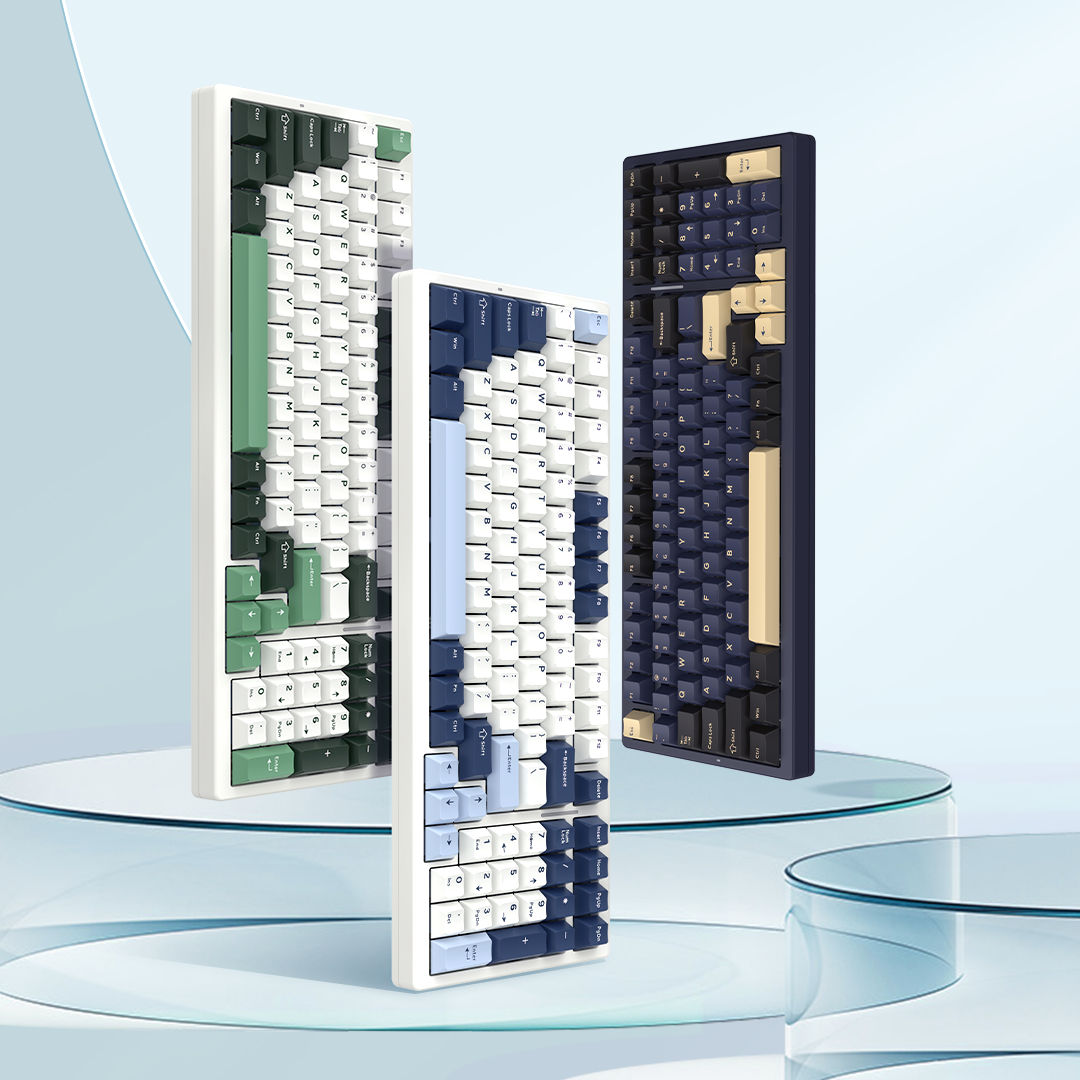

User Manual For VGN V98 Pro V4 Wireless Mechanical Keyboard
V98Pro V4 8K
01 Package Contents
- V98Pro V4 Mechanical Keyboard ×1
- USB-C to USB-A Data Cable ×1
- 2-in-1 Key Puller ×1
- Spare Switches of the same specification ×3
- Digital Manual Card ×1
- Warranty Card ×1
- Dust Cover ×1
02 Product Specifications
System Compatibility
Win7/Win8/Win10/Win11/MacOS
Sleep Modes
1.Light Sleep Mode: When the keyboard is connected via Bluetooth and remains idle for more than one minute, it enters light sleep mode. The backlight turns off while the Bluetooth connection stays connected.
2.Deep Sleep Mode: The keyboard enters deep sleep mode and disconnects the wireless connection if it is left idle for more than one minute under 2.4G mode, or more than 30 minutes under Bluetooth mode.
PS: If pairing or reconnection fails within 20 seconds under 2.4G or Bluetooth mode, the keyboard will enter light sleep mode.
Low Battery Prompt in Wireless Mode
When the battery voltage is lower than the threshold of 3.5V (approximately 10% battery level), the power indicator flashes red slowly until the keyboard goes to sleep or powers off. The keyboard will power off automatically when the battery voltage drops below 3.25V.
03 Quick Start

Wired Connection
Unpack and take out the keyboard. Slide the mode switch on the keyboard to the wired position. Plug the USB end of the cable into your computer's USB port and the USB-C end into the keyboard's USB-C port. On Windows 10 for example, go to Settings > Devices > Bluetooth & other devices > Mice, keyboards, & pens, then select VGN V98Pro V4 8K to start using the keyboard normally.
Device Name: VGN V98Pro V4 8K
2.4G Connection
Unpack and take out the keyboard. Remove the receiver from the side of the keyboard and insert it into your computer's USB port. Slide the mode switch to the WIFI position to use the 2.4G connection. Device Name: VGN V98Pro V4 8K 2.4G Dongle
Re-pairing: Press and hold the FN + 4 keys. The indicator light under the 4 key will flash white rapidly, indicating the keyboard is in 2.4G pairing mode. The indicator will return to normal lighting effect once connected successfully.
Bluetooth Connection
The keyboard can connect to one Bluetooth-enabled device at a time and retain pairing information.
Bluetooth Device Names: VGN V98Pro V4 8K BT1 / VGN V98Pro V4 8K BT2 / VGN V98Pro V4 8K BT3
Slide the mode switch to the BT gear, then follow the steps below to connect Bluetooth devices.
Press and hold FN + 1! / 2@ / 3# keys for 3 seconds. The corresponding indicator light will flash white rapidly. Find VGN V98Pro V4 8K BT1 / VGN V98Pro V4 8K BT2 / VGN V98Pro V4 8K BT3 in the Bluetooth device list and tap to pair. The indicator light will return to normal after successful pairing.
04 Indicator Lights & Mode Description

Indicator Lights
A: Caps Lock Indicator: Shows uppercase and lowercase status. Steady white light for uppercase, light off for lowercase.
B: Num Lock Indicator: Steady white light when the numeric keypad is locked, light off when unlocked.
C: Power Indicator:
Steady red light during charging, steady white light when fully charged.
Red light flashes when remaining power is below 10%.
D: 2.4G Pairing: The 4$ key flashes white rapidly for 20 seconds during pairing.
2.4G Reconnection: The 4$ key flashes white slowly for 20 seconds during reconnection.
E: Bluetooth Pairing: The 1! key flashes white rapidly for 20 seconds for Bluetooth Channel 1.
The 2@ key flashes white rapidly for 20 seconds for Bluetooth Channel 2.
The 3# key flashes white rapidly for 20 seconds for Bluetooth Channel 3.
Bluetooth Reconnection: The 1! key flashes white slowly for 20 seconds for Bluetooth Channel 1.
The 2@ key flashes white slowly for 20 seconds for Bluetooth Channel 2.
The 3# key flashes white slowly for 20 seconds for Bluetooth Channel 3.
Win Key / Alt Key
Win Key:
Disabled when locked. Functions as Option key under Mac mode.
Alt Key:
Functions as Command key under Mac mode.
Windows / Mac Mode
Press FN + A to switch to Windows mode.
Press FN + S to switch to Mac mode.
05 FN Combined Key Functions
| FN combination key function | |||
| Combination Key | Windows System | Mac System | Description |
| Fn+Esc | Restore factory settings | Restore factory settings | (Press and hold for 3 seconds) Restores to factory default state |
| Fn+A | Switch to Win system | / | The key's red light flashes slowly 3 times |
| Fn+S | / | Switch to Mac system | |
| Fn+F1 | This PC | Decrease screen brightness | |
| Fn+F2 | Home | Increase screen brightness | |
| Fn+F3 | Calculator | Mission Control | |
| Fn+F4 | Media Player | Launchpad | |
| Fn+F5 | Previous track | F5 | |
| Fn+F6 | Next track | F6 | |
| Fn+F7 | Play/Pause | Previous track | |
| Fn+F8 | Stop | Pause/Play | |
| Fn+F9 | Mute | Next track | |
| Fn+F10 | Volume down | Mute | |
| Fn+F11 | Volume up | Volume down | |
| Fn+F12 | Volume up | ||
| Fn+Win | Lock Win key | None | Win key white light always on, saved after power off |
| Fn+Del | Backlight on/off | Backlight on/off | Turn the backlight on or off |
| Fn+Home | Lighting effect mode | Lighting effect mode | Cycle through lighting effects |
| Fn+End | Lighting color | Lighting color | 7 colors: red, green, blue, yellow, purple, cyan, white |
| Fn+↑ | Increase backlight brightness | Increase backlight brightness | 5 levels: 0%-25%-50% (default)-75%-100%; backlight flashes white 3 times at the limit |
| Fn+↓ | Decrease backlight brightness | Decrease backlight brightness | |
| Fn+← | Increase backlight speed | Increase backlight speed | 5 levels: 1-2-3 (default)-4-5; backlight flashes white 3 times at the limit |
| Fn+→ | Decrease backlight speed | Decrease backlight speed | |
| Fn+Backspace | Battery check (wireless mode) | Battery check (wireless mode) | Backlight turns off, number keys 1-0 light up to display battery level: 100%-50% = green; 50%-30% = yellow; 30%-10% = red |
| Fn+1 (!) | Bluetooth mode 1 | Bluetooth mode 1 | During pairing: white light flashes fast; during reconnection: flashes slowly; after connection: white light stays on for 2 seconds then turns off |
| Fn+2 (@) | Bluetooth mode 2 | Bluetooth mode 2 | |
| Fn+3 (#) | Bluetooth mode 3 | Bluetooth mode 3 | |
| Fn+4 ($) | 2.4G mode | 2.4G mode | |
06 Lighting Effects Description
| Main Area Lighting Effects | |
| Order | Name |
| 1 | Static Mode |
| 2 | Breathing Mode |
| 3 | Dreamy Rainbow |
| 4 | Trigger Happy |
| 5 | Walking in the Rain |
| 6 | Rainbow Roulette |
| 7 | Ripple Effect |
| 8 | Twinkling Stars |
| 9 | Silent Snowfall |
| 10 | Endless Stream |
| 11 | Drifting with the Tide (Default) |
| 12 | Shadow Follow |
| 13 | Sine Wave Light |
| 14 | Left-Right Scan |
| 15 | Spinning Windmill |
| 16 | Colorful Waterfall |
| 17 | Blooming Prosperity |
| 18 | Spinning Storm |
| 19 | Custom |
07 Screen Animation Instructions

08 Common Troubleshooting
Q: Why is my Windows key not working?
A: The Windows key will not function when it is locked by pressing Fn + Win. You will see the Win key indicator light remain on when locked. Press Fn + Win again to unlock it.
Q: How can I customize keys, use macros, or adjust more RGB lighting effects?
A: Visit VHUB at vgnlab.com to access the driver software. With VHUB, you can customize key assignments, edit macros, and fine-tune RGB lighting effects to unlock the full functionality of your keyboard.
V98Pro V4
01 Package Contents
- V98Pro V4 8K Mechanical Keyboard ×1
- USB-C to USB-A Data Cable ×1
- 2-in-1 Key Puller ×1
- Spare Switches of the same specification ×3
- Digital Manual Card ×1
- Warranty Card ×1
- Dust Cover ×1
02 Product Specifications
System Compatibility
Win7/Win8/Win10/Win11/MacOS
Sleep Modes
1.Light Sleep Mode: When the keyboard is connected via Bluetooth and remains idle for more than one minute, it enters light sleep mode. The backlight turns off while the Bluetooth connection stays connected.
2.Deep Sleep Mode: The keyboard enters deep sleep mode and disconnects the wireless connection if it is left idle for more than one minute under 2.4G mode, or more than 30 minutes under Bluetooth mode.
PS: If pairing or reconnection fails within 20 seconds under 2.4G or Bluetooth mode, the keyboard will enter light sleep mode.
Low Battery Prompt in Wireless Mode
When the battery voltage is lower than the threshold of 3.5V (approximately 10% battery level), the power indicator flashes red slowly until the keyboard goes to sleep or powers off. The keyboard will power off automatically when the battery voltage drops below 3.25V.
03 Quick Start
Wired Connection
Unpack and take out the keyboard. Slide the mode switch on the keyboard to the wired position. Plug the USB end of the cable into your computer's USB port and the USB-C end into the keyboard's USB-C port. On Windows 10 for example, go to Settings > Devices > Bluetooth & other devices > Mice, keyboards, & pens, then select VGN V98Pro V4 8K to start using the keyboard normally.
Device Name: VGN V98Pro V4
2.4G Connection
Unpack and take out the keyboard. Remove the receiver from the side of the keyboard and insert it into your computer's USB port. Slide the mode switch to the WIFI position to use the 2.4G connection. Device Name: VGN V98Pro V4 2.4G Dongle
Re-pairing: Press and hold the FN + 4 keys. The indicator light under the 4 key will flash white rapidly, indicating the keyboard is in 2.4G pairing mode. The indicator will return to normal lighting effect once connected successfully.
Bluetooth Connection
The keyboard can connect to one Bluetooth-enabled device at a time and retain pairing information.
Bluetooth Device Names: VGN V98Pro V4 BT1 / VGN V98Pro V4 BT2 / VGN V98Pro V4 BT3
Slide the mode switch to the BT gear, then follow the steps below to connect Bluetooth devices.
Press and hold FN + 1! / 2@ / 3# keys for 3 seconds. The corresponding indicator light will flash white rapidly. Find VGN V98Pro V4 BT1 / VGN V98Pro V4 BT2 / VGN V98Pro V4 BT3 in the Bluetooth device list and tap to pair. The indicator light will return to normal after successful pairing.
04 Indicator Lights & Mode Description
Indicator Lights
A: Caps Lock Indicator: Shows uppercase and lowercase status. Steady white light for uppercase, light off for lowercase.
B: Num Lock Indicator: Steady white light when the numeric keypad is locked, light off when unlocked.
C: Power Indicator:
Steady red light during charging, steady white light when fully charged.
Red light flashes when remaining power is below 10%.
D: 2.4G Pairing: The 4$ key flashes white rapidly for 20 seconds during pairing.
2.4G Reconnection: The 4$ key flashes white slowly for 20 seconds during reconnection.
E: Bluetooth Pairing: The 1! key flashes white rapidly for 20 seconds for Bluetooth Channel 1.
The 2@ key flashes white rapidly for 20 seconds for Bluetooth Channel 2.
The 3# key flashes white rapidly for 20 seconds for Bluetooth Channel 3.
Bluetooth Reconnection: The 1! key flashes white slowly for 20 seconds for Bluetooth Channel 1.
The 2@ key flashes white slowly for 20 seconds for Bluetooth Channel 2.
The 3# key flashes white slowly for 20 seconds for Bluetooth Channel 3.
Win Key / Alt Key
Win Key:
Disabled when locked. Functions as Option key under Mac mode.
Alt Key:
Functions as Command key under Mac mode.
Windows / Mac Mode
Press FN + A to switch to Windows mode.
Press FN + S to switch to Mac mode.
05 FN Combined Key Functions
| FN combination key function | |||
| Combination Key | Windows System | Mac System | Description |
| Fn+Esc | Restore factory settings | Restore factory settings | (Press and hold for 3 seconds) Restores to factory default state |
| Fn+A | Switch to Win system | / | The key's red light flashes slowly 3 times |
| Fn+S | / | Switch to Mac system | |
| Fn+F1 | This PC | Decrease screen brightness | |
| Fn+F2 | Home | Increase screen brightness | |
| Fn+F3 | Calculator | Mission Control | |
| Fn+F4 | Media Player | Launchpad | |
| Fn+F5 | Previous track | F5 | |
| Fn+F6 | Next track | F6 | |
| Fn+F7 | Play/Pause | Previous track | |
| Fn+F8 | Stop | Pause/Play | |
| Fn+F9 | Mute | Next track | |
| Fn+F10 | Volume down | Mute | |
| Fn+F11 | Volume up | Volume down | |
| Fn+F12 | Volume up | ||
| Fn+Win | Lock Win key | None | Win key white light always on, saved after power off |
| Fn+Del | Backlight on/off | Backlight on/off | Turn the backlight on or off |
| Fn+Home | Lighting effect mode | Lighting effect mode | Cycle through lighting effects |
| Fn+End | Lighting color | Lighting color | 7 colors: red, green, blue, yellow, purple, cyan, white |
| Fn+↑ | Increase backlight brightness | Increase backlight brightness | 5 levels: 0%-25%-50% (default)-75%-100%; backlight flashes white 3 times at the limit |
| Fn+↓ | Decrease backlight brightness | Decrease backlight brightness | |
| Fn+← | Increase backlight speed | Increase backlight speed | 5 levels: 1-2-3 (default)-4-5; backlight flashes white 3 times at the limit |
| Fn+→ | Decrease backlight speed | Decrease backlight speed | |
| Fn+Backspace | Battery check (wireless mode) | Battery check (wireless mode) | Backlight turns off, number keys 1-0 light up to display battery level: 100%-50% = green; 50%-30% = yellow; 30%-10% = red |
| Fn+1 (!) | Bluetooth mode 1 | Bluetooth mode 1 | During pairing: white light flashes fast; during reconnection: flashes slowly; after connection: white light stays on for 2 seconds then turns off |
| Fn+2 (@) | Bluetooth mode 2 | Bluetooth mode 2 | |
| Fn+3 (#) | Bluetooth mode 3 | Bluetooth mode 3 | |
| Fn+4 ($) | 2.4G mode | 2.4G mode | |
06 Lighting Effects Description
| Main Area Lighting Effects | |
| Order | Name |
| 1 | Static Mode |
| 2 | Breathing Mode |
| 3 | Dreamy Rainbow |
| 4 | Trigger Happy |
| 5 | Walking in the Rain |
| 6 | Rainbow Roulette |
| 7 | Ripple Effect |
| 8 | Twinkling Stars |
| 9 | Silent Snowfall |
| 10 | Endless Stream |
| 11 | Drifting with the Tide (Default) |
| 12 | Shadow Follow |
| 13 | Sine Wave Light |
| 14 | Left-Right Scan |
| 15 | Spinning Windmill |
| 16 | Colorful Waterfall |
| 17 | Blooming Prosperity |
| 18 | Spinning Storm |
| 19 | Custom |
07 Screen Animation Instructions

08 Common Troubleshooting
Q: Why is my Windows key not working?
A: The Windows key will not function when it is locked by pressing Fn + Win. You will see the Win key indicator light remain on when locked. Press Fn + Win again to unlock it.
Q: How can I customize keys, use macros, or adjust more RGB lighting effects?
A: Visit VHUB at vgnlab.com to access the driver software. With VHUB, you can customize key assignments, edit macros, and fine-tune RGB lighting effects to unlock the full functionality of your keyboard.